I haven’t written in this blog for a long time. I’m shutting down another blog to consolidate my writing to one place. For some reason, this one post on my other blog got lots of hits. Even though it was written in September 2019, as of April 2026, it was still being found. Clearly YRDSB hasn’t made it easy to connecto their wifi. So I’m reposting this here in the hope that it gets found by others
My daughter started in grade 9 at Westmount Collegiate Institute in Thornhill in September 2019. Trying to find the right information to connect to school wifi proved to be quite difficult. There is nothing online that tells you how, or if it’s there they’ve hidden it really well. My son has been in the York Region school system for a few years and must have somehow figured out how to connect as his Chromebook connects. We ended up going to the school with both Chromebooks and I checked the settings of the one that does connect and entered the right information and it worked.
The directions below are for a Chromebook but should work for any Windows or Mac too. The field names may be different.
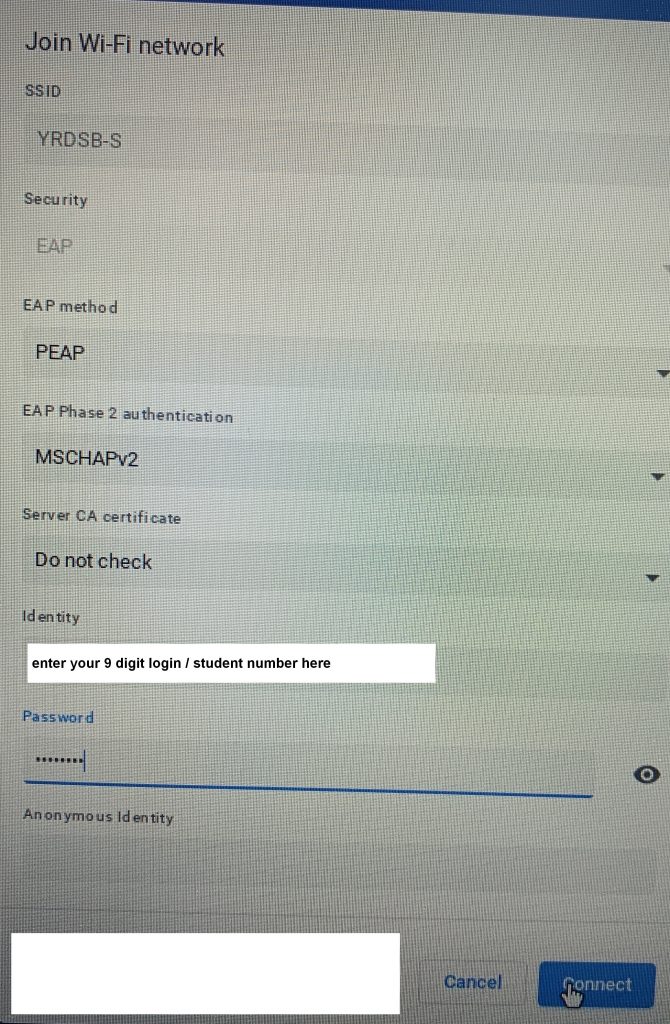
To save others the same trouble we went through, here is what you need to fill out on the wifi settings.
- First, make sure to connect to the YRDSB-S wifi network.
- Choose EAP security, EAP method PEAP.
- You may be able to choose automatic for EAP Phase 2 authentication but I saw that it used MSCHAPv2 so selected that.
- Do not check for Server CA certificate
- Identity is your 9 digit student number
- Password you should already have for Google Classroom
Click Connect and you should be good to go.